How to upgrade the M250 reader firmware with CenterScape
To upgrade reader firmware, from the Admin console, navigate to Configuration->Reader Firmware. All of the readers will be listed with the Firmware Version that is running on each reader and the version of firmware that is available to update to.
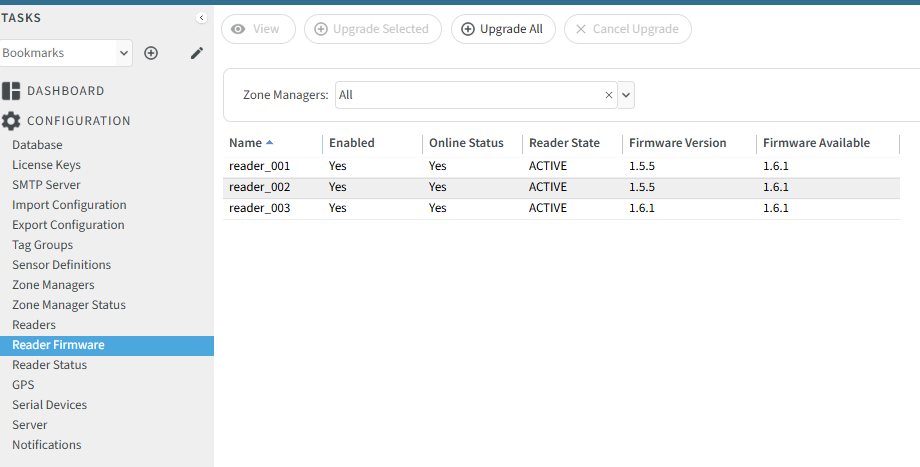
As of this writing the latest reader firmware version is 1.6.3 and can be downloaded from this bundle: (fw.2.23.zip) 2.23 firmware bundle.
Once downloaded, in the Firmware Information section at the bottom of the Reader Firmware page, click Browse and select the file. Once selected, click Upload.
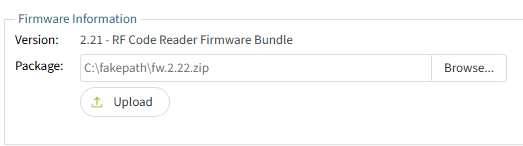
Once uploaded the Firmware Available will change to the newer version.

Readers can be upgraded selectively or all at once (Upgrade Selected or Upgrade All) - in this example one reader is selected to be upgraded by selecting the desired reader and clicking Upgrade Selected.
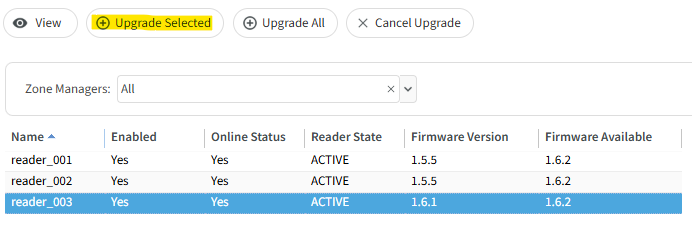
When the reader receives the file, the Reader State will change to FIRMWAREUPGRADING

Once the firmware is upgraded, the Reader State will change to CONNECTFAILURE while the reader(s) reboot.

Once the reader reboots and reconnects it will show ACTIVE and the firmware version will be up to date. The entire process takes approximately 3 minutes depending on the network conditions and the number of readers updated at one time. RF Code recommends not upgrading more than 10 at a time.
