Inventory Types
Inventory types include Blade Chassis, Blade Server, network Equipment, Peripheral, Server, Storage, Employee and Visitor. Additionally, Equipment and Person may also be used as more general types. If CenterScape is used to track other types of assets than data center assets it is recommended that new types be created beneath the Inventory Types. The main purpose of the Inventory type is a categorization for assets that need their physical location to be tracked.
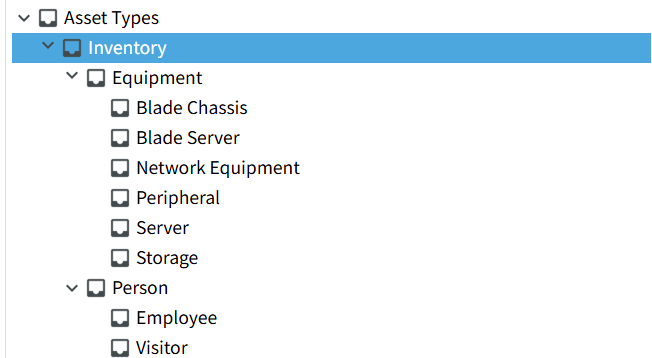
Note: The Inventory Type is for categorization only. Do not create an asset with the type inventory, instead select a subtype ideally at the leaf nodes of the Inventory type tree.
Equipment
Equipment is both a classification for other asset types and a selectable asset type. It is in a general sense designed for data center assets. In most cases it is recommended that more specific types be used unless a more general type is needed for integration work where mapping to a more specific type is burdensome.
Common Attributes
In Additon to the Core and Descriptive Attibutes, Equipment Assets have the following additional attributes.
| Attribute | Description |
|---|---|
| Allow Front to Back | This permits racked asset to be racked in the front or rear of the cabinet |
| Spacial Width | This is used to draw the asset in Rack Visualization. The default is 19" for a standard cabinet. Using the default is recommended. |
| Spacial Height | This is used for documentation purposes only. |
| Spacial Depth | This is used to draw how deep an asset is in rack visualization. The defaults will vary by Asset type (Network, Server, Storage, etc). This field can be overidden with actual measurments of the device but a zero depth will cause problems with rack visualization. |
Blade Chassis
Blade Chassis is used for the Rack Mounted Chassis that supports Blade servers. This asset type has the common attributes of equipment as well as Mount Support and Mount Type. The blade chassis is unique in that it Mount Support and Mount Type are both on the same asset type. This is because blade chassis supports having blade servers mounted to it and also supports being mounted into a rack.
Required Fields
- Name - Name must be unique for any asset in the system
Recommended Fields
-
Mount Support - Mount support should be set to default of Blade Chassis Mount
-
Mount Type - Mount Type should be set to Rack U Mount if asset can be mounted in cabinet
-
Blade Chassis Capacity - This is the Maximum number of Blade Servers that the Chassis supports
-
Rack Item U Height - This is the number U that a piece of rack mounted hardware occupies
-
Operational Status - The operational state of the asset.
-
Asset Tag - Tag RF Code Asset Tag attached to the blade if available
-
Assigned To - The Rack Asset or other Summary Location that the Chassis is currently assigned to.
-
Rack Item U Top - When an asset is mounted to a cabinet this is the top U that a asset occupies.
Blade Server
The Blade Server type is used for servers that can be assigned to Blade Chasisis type. Blade Servers will not take up a U in a rack and should not be assigned to a cabinet but to either a location or to a blade server.
Required Fields
- Name - Name must be unique for any asset in the system
Recommended Fields
-
Mount Type - Mount type for blade server should be set to Blade Chassis Mount.
-
Blade Cassis Slots - This is the number of Blade Chassis slots that will be consumed if this blade server is installed in a Blade Chassis. This is NOT the position in the blade chassis.
-
Assigned To Blade Chassis - This is the Blade Chassis that the Blade Server is assigned to. The Assigned location will automatically update to the assigned location of the blade chassis if used. If the blade chassis is reassigned to a different location then the assigned location of the blade server will also be updated.
-
Assigned To - This is the assigned location of the Blade chassis. This would be used to assign a blade server to a storage room. If Assigned to Blade Chassis is used, then Assigned To should be left blank. It will update automatically with the values of Assigned to on the Blade Chassis.
-
Operational Status -- The operational state of the asset.
-
Asset Tag -- Tag RF Code Asset Tag attached to the chassis if available
Network Equipment
The Network Equipment type is designed for assets like Network Switches, Network Routers, patch panels, fiber boxes or any other asset that is used for Network interconnect and occupies U space in a rack.
Required Fields
- Name - Name must be unique for any asset in the system
Recommended Fields
-
Mount Type - Mount type for Network Equipment should be set to "Rack U Mount" and also defaults to this. If the network device does not occupy a cabinet U then Mount type should be set to "NA"
-
Rack Item U Height - This is the number of rack units that the asset will occupy when mounted to a cabinet.
-
Rack Item U Top - When an asset is mounted to a cabinet this is the top U that a asset occupies.
-
Rack Item in Back - Indicates with "yes" that an asset is mounted in the back of a cabinet. No value means the asset is mounted in the front.
-
Allow Front and Back - Indicated that an asset can be mounted in the front or back and not occupy the opposite U. For example a patch panel and a short depth switch can be mounted on the same U as long as one is mounted in the front of the rack and the other is mounted in the back.
-
Asset Tag - Tag RF Code Asset Tag attached to the Network Equipment if available
-
Assigned To - The Rack Asset or other Summary Location that the Chassis is currently assigned to.
Peripheral
The peripheral asset type is designed for rack mounted or floor standing assets that are not servers or switches. They could be used for additional storage drive arrays, precision time clocks, in row cooling, electrical transformers or other miscellaneous devices that are not considered Server, Network Equipment or Storage. Its used as a catch all for lower volume asset types that are rack mountable. Custom types can also be created if peripheral is deemed too general for use.
Required Fields
- Name - Name must be unique for any asset in the system
Recommended Fields
-
Asset Tag - Tag RF Code Asset Tag attached to the Peripheral if available
-
Mount Type - The default is "NA" for this type. If it is a rack mounted asset it should be changed to Rack U Mount
-
Assigned To - The Rack Asset or other Summary Location that the Peripheral is currently assigned to.
Server
The Server type is used for any Server. The default will be for a rack mounted server which is typically the most common, but floor standing can be used for things like Main Frames or big metal.
Required Fields
- Name - Name must be unique for any asset in the system
Recommended Fields
-
Mount Type - The Default mount type is Rack U Mount, but Floor mount can also be used. If adding a blade server, it is recommended that the Blade Server type be used.
-
Assigned To - This is the assigned location of the Server. This would be used to assign a Server to a storage room or to the Rack that the server is installed into.
-
Asset Tag - Tag RF Code Asset Tag attached to the Server if available
-
Rack Item U Height - This is the number of rack units that the asset will occupy when mounted to a cabinet.
-
Rack Item U Top - When an asset is mounted to a cabinet this is the top U that a asset occupies.
-
Rack Item in Back - Indicates with "yes" that an asset is mounted in the back of a cabinet. No value means the asset is mounted in the front.
Storage
The storage type is designed for use with assets that primarily function as storage servers. Entire racks may be s single asset or storage servers can be 1U to 8U rack mounted devices. Some Storage units are tied to Storage controllers via a custom interface. These can be added as Storage types or Peripheral types as desired.
Required Fields
- Name - Name must be unique for any asset in the system
Recommended Fields
-
Mount Type - The Default mount type is Rack U Mount, but Floor mount can also be used.
-
Assigned To - This is the assigned location of the Storage device. This would be used to assign a Storage device to a storage room, loading dock or to the Rack that the Storage device is installed into.
-
Asset Tag - Tag RF Code Asset Tag attached to the Storage device if available
-
Rack Item U Height - This is the number of rack units that the asset will occupy when mounted to a cabinet.
-
Rack Item U Top - When an asset is mounted to a cabinet this is the top U that a asset occupies.
-
Rack Item in Back - Indicates with "yes" that an asset is mounted in the back of a cabinet. No value means the asset is mounted in the front.