How to Create Reports
Reports can be generated from the user or admin panels.
This example will show how to generate an exhaust temperature report for a certain row of racks that is above a certain temperature over the last week.
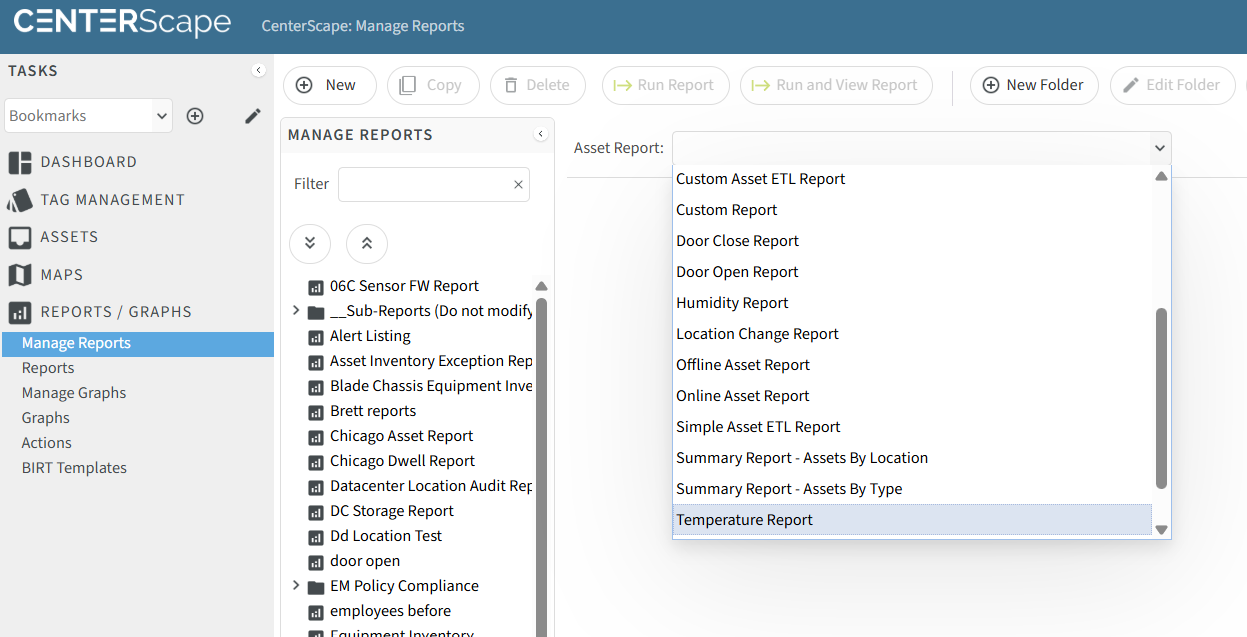
From the user panel, navigate to Manage Reports and select Temperature Report from the Asset Report dropdown list.
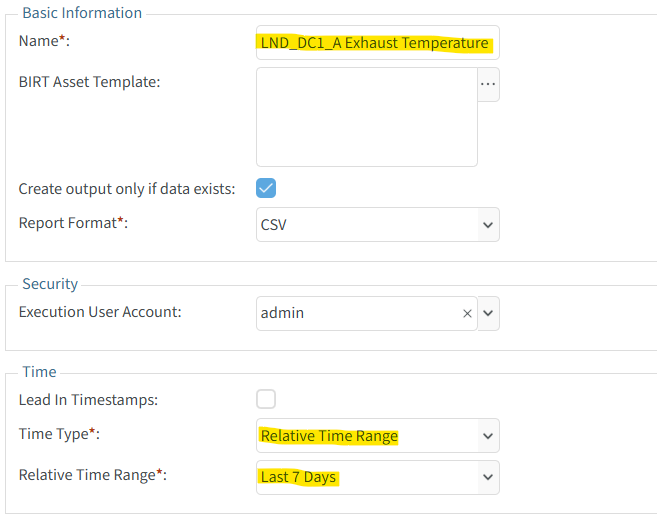
Give the report a meaningful name.
Make sure the 'Create output only if data exists:' is checked. Leaving this unchecked can be helpful as well, but a blank report will be generated if no filters match.
For the Time parameters, select Relative Time Range and make it Last 7 days
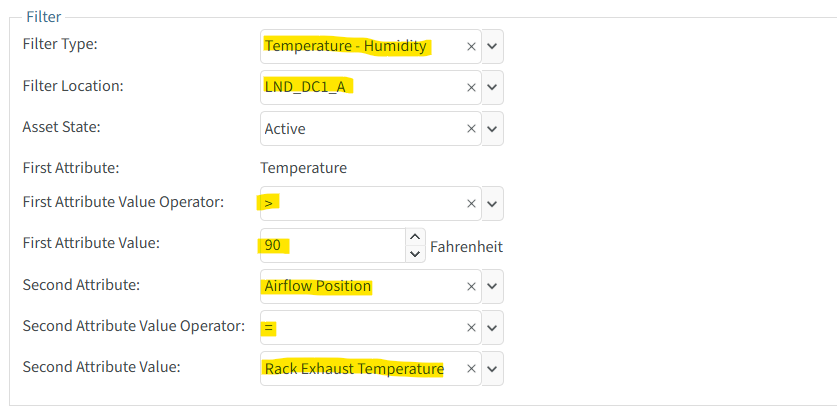
Filter type should be Temperature - Humidity
Select the location desired.
The First Attributes section should read "Temperature greater than X" (where X is the desired temperature)
The Second Attributes section should read "Airflow Position equals Rack Exhaust Temperature"
Select the attributes that will appear in the report.

Click Save Changes and the report can be run by clicking on Run Report or Run and View Report
How to schedule reports to be run at a certain time(s)
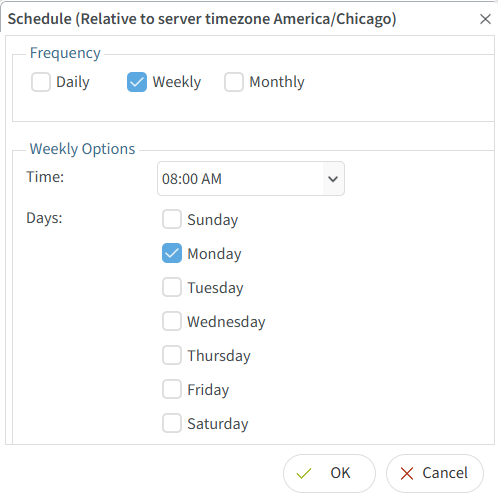
To schedule reports to be run at certain times, click on the ellipses in the Schedule section and select the desired schedule. This example will run this report every Monday at 8 AM.

How to email reports to users
In order to email users, select Email Report/Graph Action from the dropdown in the Actions menu item.
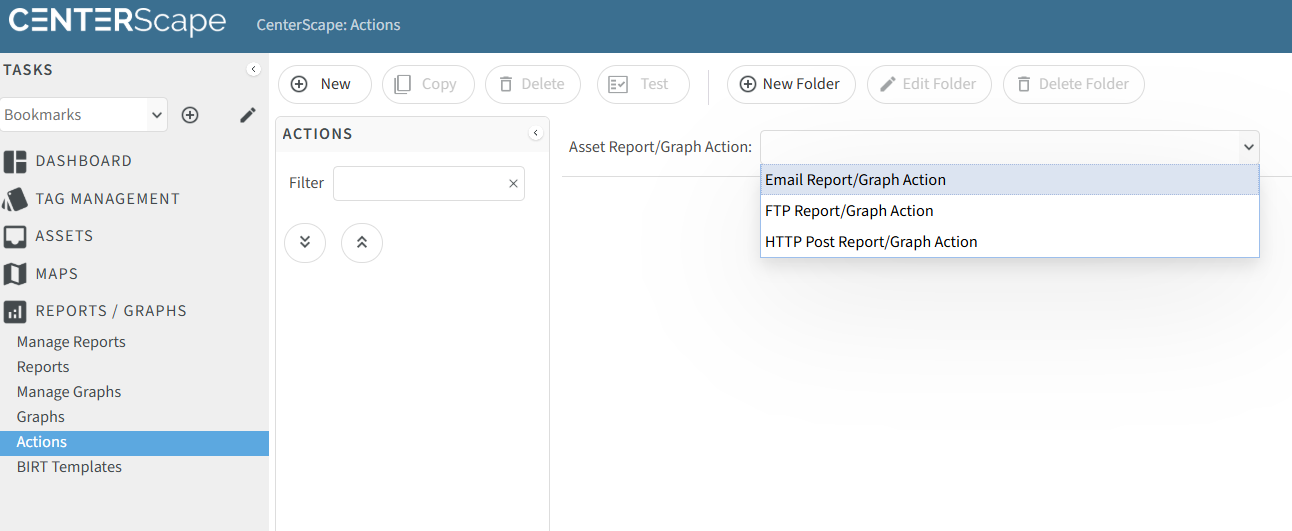
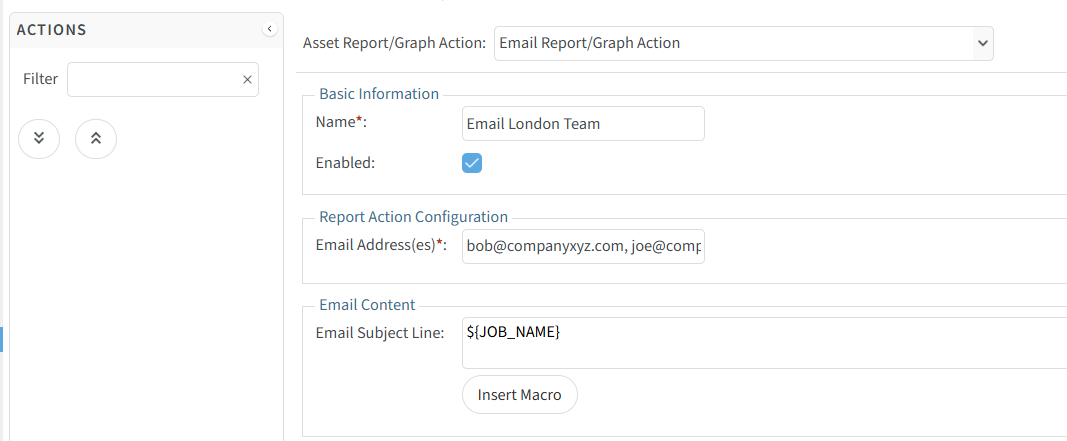
Give the Action a name and enter email address(es) separated by a comma.
The report can be edited to include the email action by clicking on the ellipses in the Actions section.

Select the desired email action.
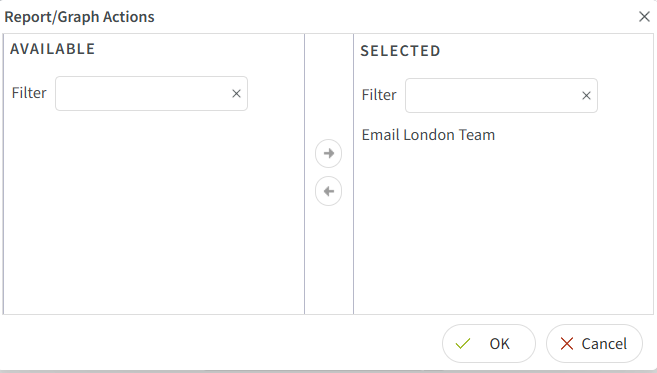
This report will run automatically according to the schedule every Monday at 8 AM it will be emailed to the selected email actions.