Updating CenterScape On Windows
After backing up the database the new CenterScape installer should be ran on the server. There is no need to stop the service prior to installing the new software. However, backing up a few files prior to installing the new version is recommended. In the install directory the files keystore and system.properties should be copied to another folder. Additionally if the CenterScape application server is ran under a service account instead of "Local System", the password for the service account will be needed to complete the install.
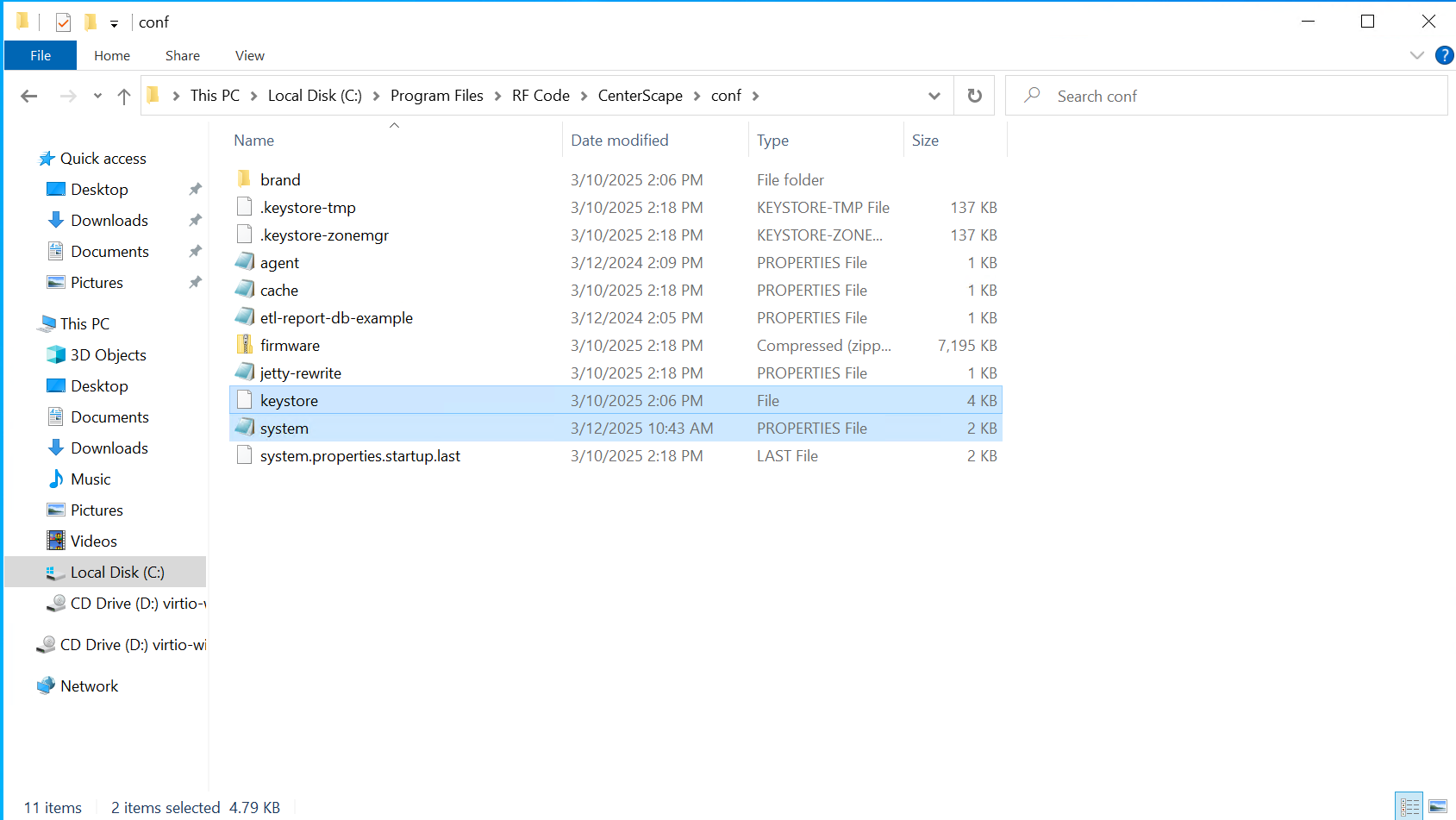
In the below example the directory these files reside in is "C:\Program Files\RF Code\CenterScape\conf". The files may reside elsewhere if the app is installed in another drive or directory, but they should be in the "conf" directory under the install directory. Copy these two files to the desktop or some other folder that is outside of the application install directory in case they are needed later to revert back to the original version. The system properties file contains information on how the application connects to the database as well as encrypted passwords need to access the keystore. The keystore contains the private SSL key for the web server as well as certificates used by the web server and to authenticate ofter certificates in the enterprise network. The installer should modify these files but they would be needed in the case of having to uninstall and reinstall the original version of the software.
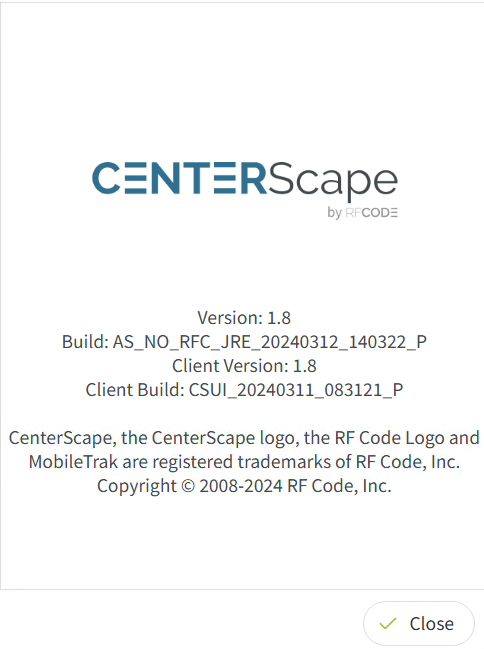
Check the version of CenterScape running on the server. There are two distributions for windows. If the version installed has "NO_JRE" in the Build parameter, then the No JRE version of the software needs to be installed. In the below example this windows server is running CenterScape 1.8 using the NO_JRE distribution.
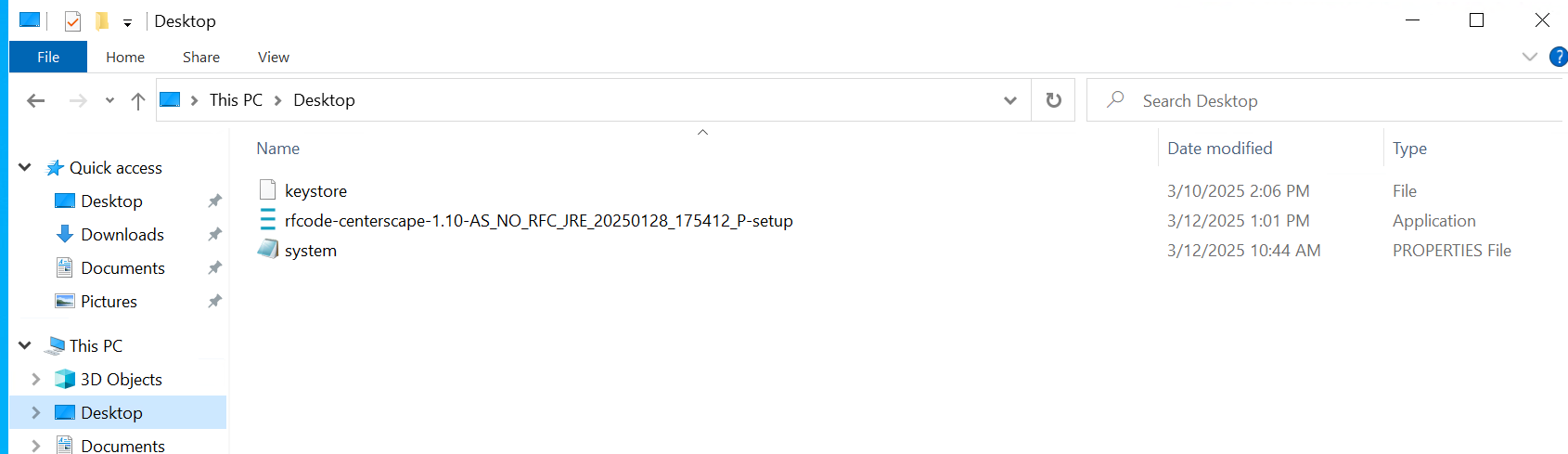
Because this server is using the NO_JRE version and already has a version of Java installed, the proper installer would be rfcode-centerscape-1.10-AS_NO_RFC_JRE_20250128_175412_P-setup to upgrade to version 1.10 of CenterScape. Users can switch between the NO_JRE and the version packaged Open JDK if they wish, but in most cases an upgrade just consists of updating CenterScape with the same distribution type. The below file manager screenshot shows the correct distribution to upgrade the 1.8 NO_JRE version of CenterScape to the 1.10 NO_JRE version of CenterScape. Double clicking on the installer will start the upgrade if CenterScape is already installed, or create a new install if CenterScape is not currently installed.
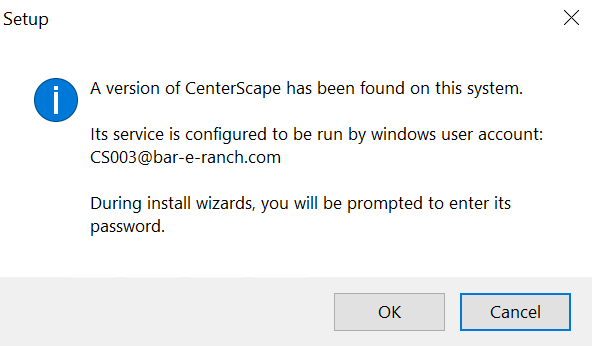
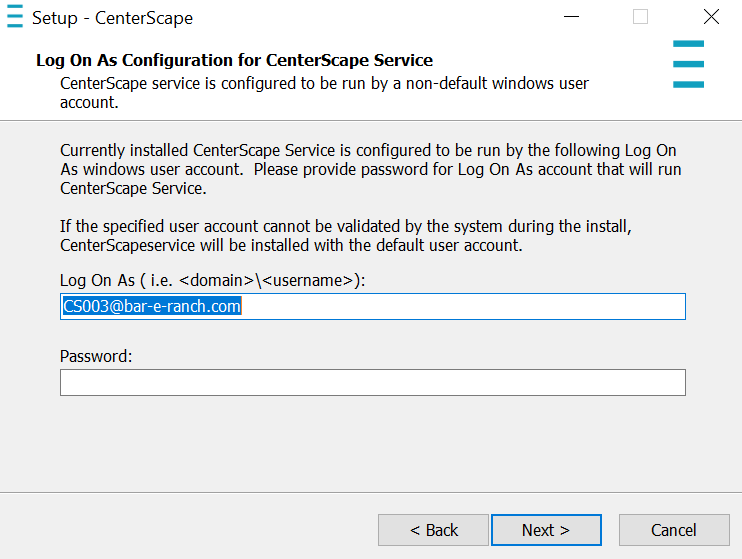
If the CenterScape service uses an account other than "Local System" to run under the following prompt will be displayed. The password for this account will be needed during the installation process. If that password is not known, the install should be cancelled until the password can be found. If the update is installed with the incorrect password then the service will not be able to run once the update is complete. This can be corrected by updating the password in the Windows Services control panel.
The installer should detect where the current software is installed and the next prompt that requires interaction would be for the service account credentials if a service account is used. If the service runs under the default local system the default options throughout the entire install are all that is needed to complete the install. When using a service account the password will not be validated by the installer. If the service fails to start due to a bad password, that can be fixed in Windows Services after the installer completes.
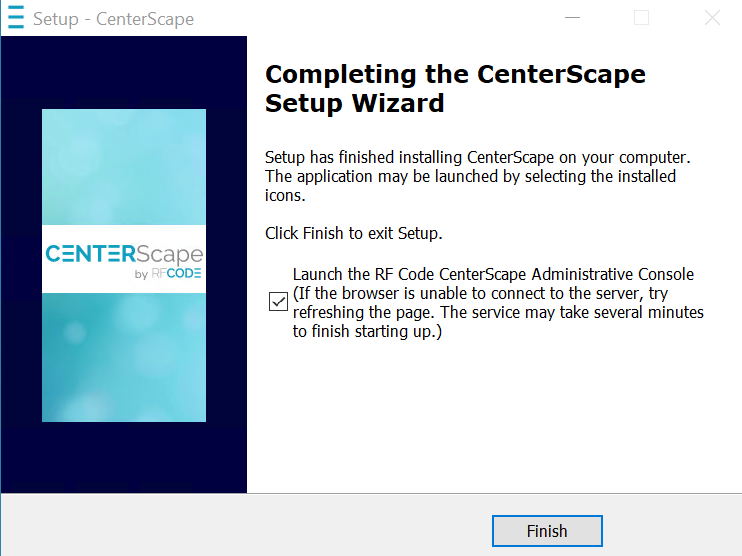
It may take a few minutes for the installer to complete and for the service to start running. The web server should be available after the application update is complete. However, it may be up to five minutes before the web server is up and running on a large install, so the web browser may timeout immediately after the install.
If the web browser displays the following 5 minutes after the install is complete then the service needs to be checked. It is normal for the web browser not to connect immediately after an update due to the time it takes to initialize CenterScape.
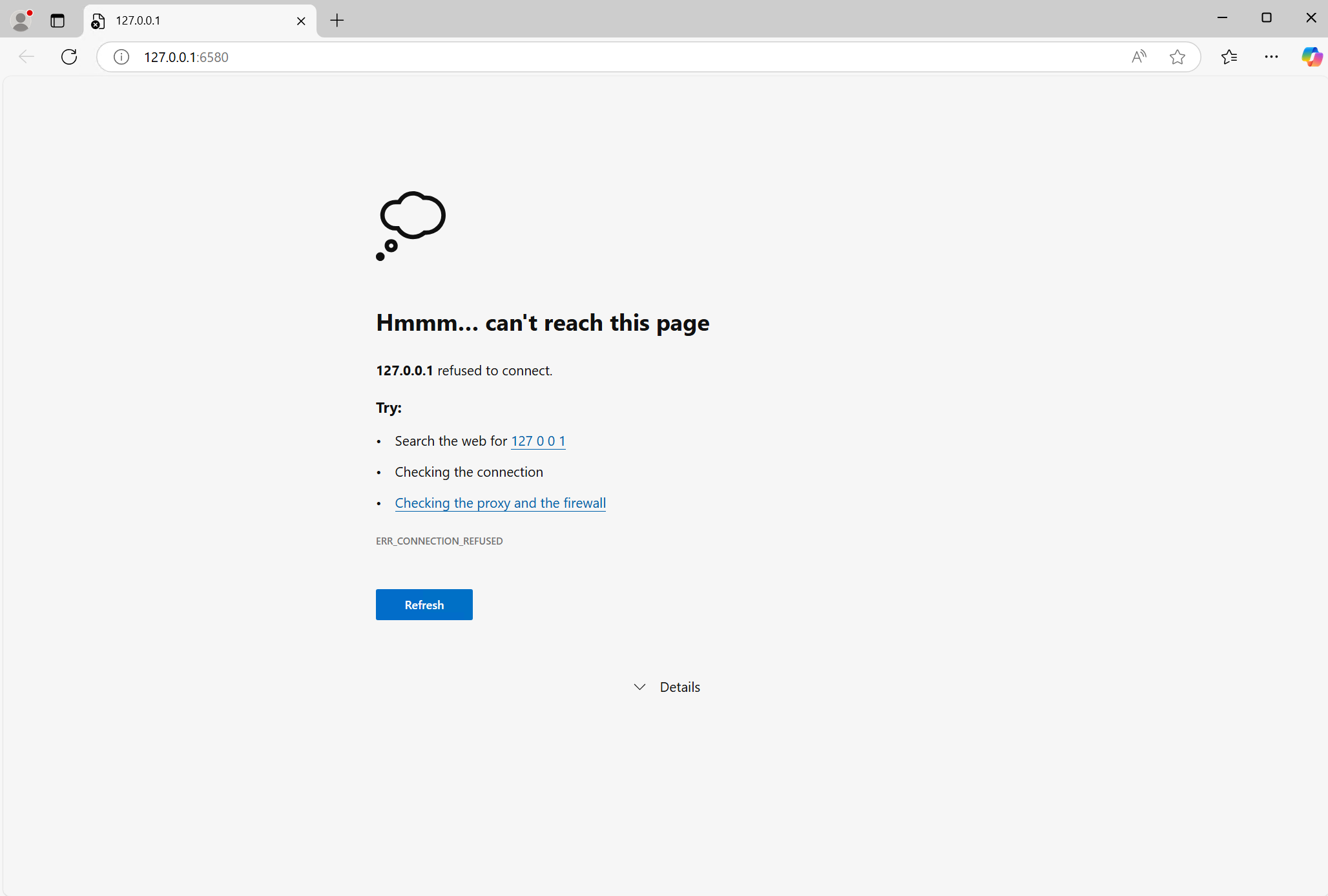
Note: In some cases migration can require more time to complete than the 5 minutes that the service watchdog allows. If that is the case the service should be stopped and line startup.timeout=3600 should be added to the system.properties file and the service started. Once the upgrade is finished the startup.timeout should be removed from system.properties.