LDAP/Active Directory
LDAP or Lightweight Directory Access Protocol is a vendor neutral industry standard for providing a central store of usernames, passwords, and group membership information to Operating Systems , Applications, and Services. Instead of using local users in CenterScape who's passwords are stored in the SQL database that CenterScape is connected to LDAP can be used to authenticate users and validate which roles should be granted to them in CenterScape. In order for CenterScape to use LDAP, it must be configured properly. The following instuctions cover how to configure LDAP with Microsoft's Active Directory product, but other LDAP systems will use a simular configuration with different attributes.
Prerequisites
Before configuration LDAP a bind account must be created or used so that the CenterScape Application can access the directory of the LDAP server. This account is normally a service account which does not have login rights to resources other than accessing the directory tree. A normal user account will work and can be used for troubleshooting, but a service account is recommended. Additionally, the host name of the LDAP server is needed so that CenterScape can contact the LDAP server.
Note: For security reasons it is recommended that LDAP not be used unless a proper SSL certificate is issued to CenterScape, otherwise LDAP credentials will be passed without encryption between the web client and the CenterScape host.
Configuring LDAP Server
The initial LDAP configuration is done by navigating to the admin console and selecting User Access->LDAP Server and then selecting the Server Configuration Tab.
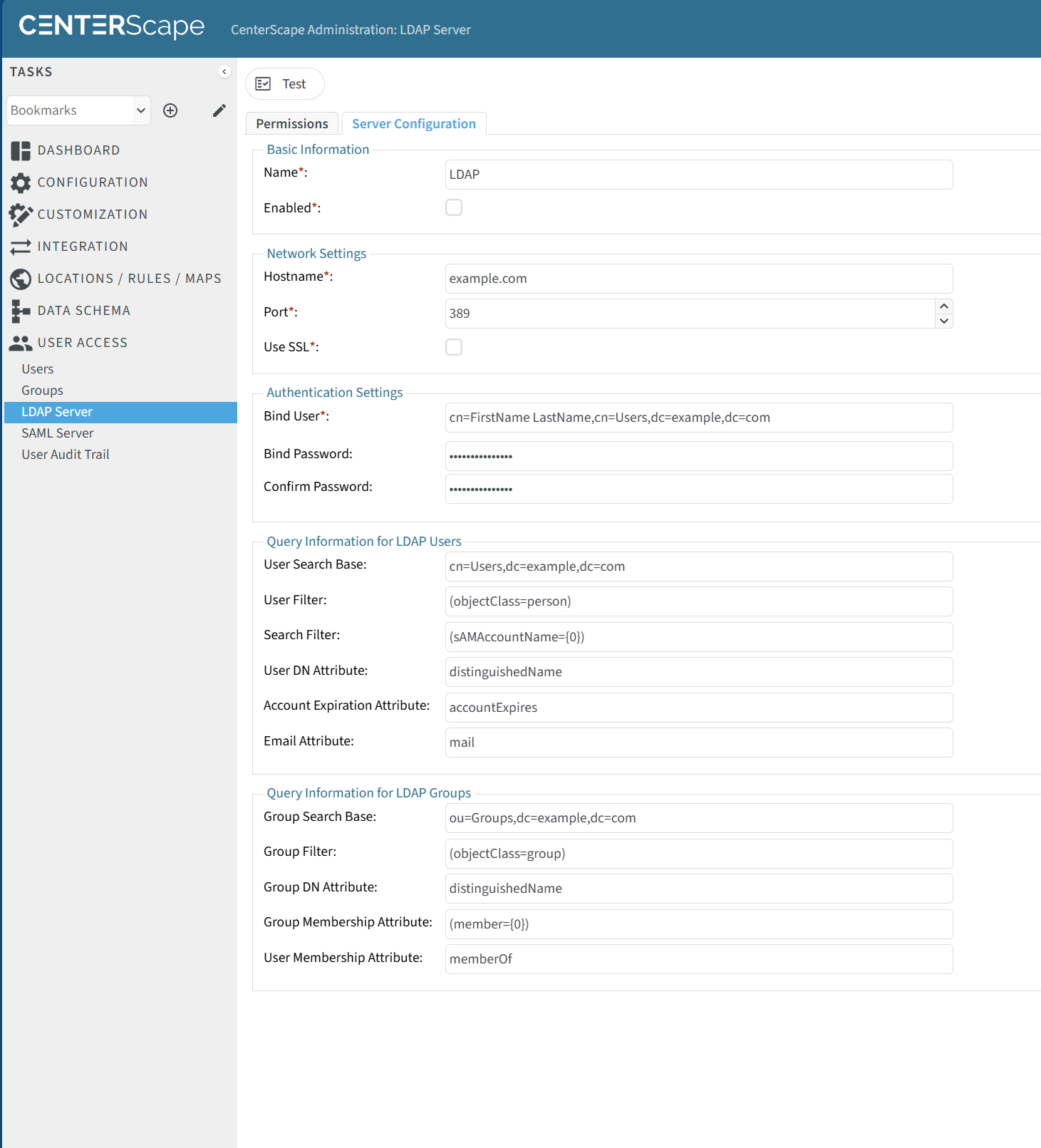
Fields
Name - This is the name of the LDAP server. This is just an informational field and just needs to have a unique name in the system. Using the default LDAP is fine and it can be changed at anytime.
Enabled - Determines whether CenterScale use the configured LDAP server to attempt to authenticate logins.
Hostname - This is the hostname for the LDAP/Active directory server to use.
Port - The default port for non-encrypted LDAP for active directory is port 389. The default port for Encrypted Active Directory is 636.
Note: It is recommended that only encrypted LDAP be used so passwords are transmitted between CenterScape and LDAP safely. If CenterScape (1.9+) is installed on a Windows server as part of the same domain of the LDAP server, the certificate will be authenticated by the windows store. If CenterScape is installed on Linux or on a different domain then the public certificate of the LDAP server may need to be added to the keystore.
Use SSL - This turns on encryption of LDAP traffic between CenterScape and the LDAP host.
Bind User - This is the DN of the account used by CenterScape to traverse the LDAP tree. If the DN for the account is not known use ADSI or ask an LDAP administrator for the proper DN.
Obtaining the Bind User Distinguished Name
On Active Directory the Distinguished Name of the bind account can be found by using a tool called "ADSI Edit" which is a Microsoft Management Console snap in. Run adsi and find the bind account in the tree. Right click on the account and go to properties.
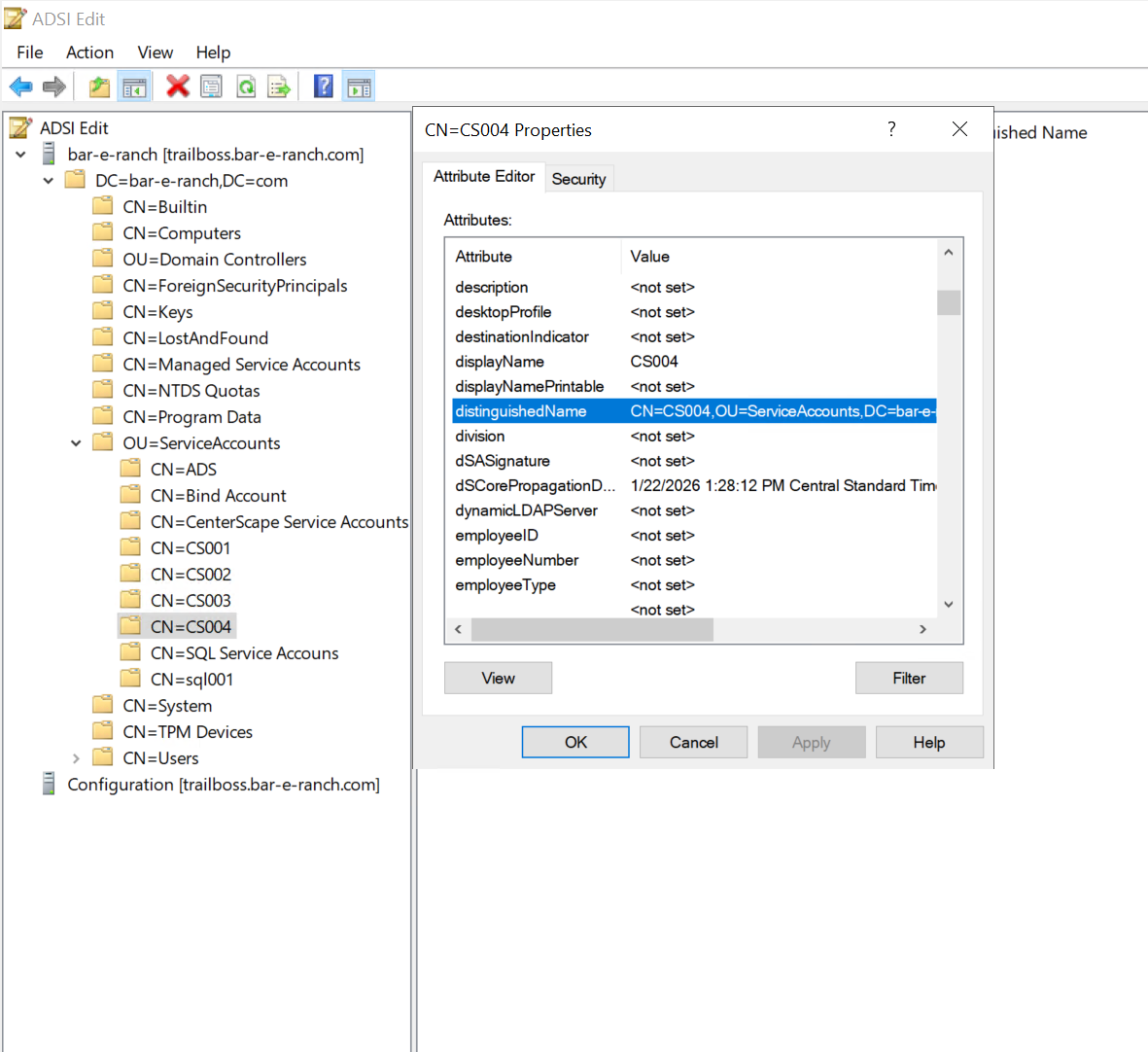
The distinguishedName field will contain the DN of the service account. In this case it is: CN=CS004,OU=ServiceAccounts,DC=bar-e-ranch,DC=com
Bind Password - This is the password for the Bind account
User Search Base - This is the lowest leaf of the LDAP directory structure that users can be found in. Limiting the search base can be done to scope the users that can be configured to access CenterScape, but the user search base DOES NOT allow all users found in the search base to access CenterScape, it only makes them eligible for being granted access later. Permissions can not be granted to users not included in the search base. It is recommended that a broad search base be used unless there is a specific security reason to limit the base.
User Filter - This is a field in LDAP that indicated that an object is a user. For Active Directory the default is (objectClass=person)
Search Filter - When a user attempts to login to CenterScape the username they provide will be sent as this filed. The 0 character is substituted for the value of the username. The default login ID attribute for Active Directory is sAMAccountName. The field will be (sAMAccountName=0) in the syntax of the Search Filter for Active Directory to user Windows account names. Other attributes can be used if desired, but in general the default will work with Active Directory
User DN Attribute - This is the name of the attribute that publishes the Distinguished Name. Depending on the LDAP implementation this attribute name may vary. On Active Directory the default of distinguishedName should be used unless another custom field needs to be substituted.
Account Expiration Attribute - This will be used to determine if an account is expired, though the LDAP server may not honor authentication on an expired account even if this field is not used.
Email Attribute - If a property is supplied the email attribute for a user in LDAP will be available on the Admin Console when a user first logs into CenterScape
Group Search Base - This is the lowest leaf of the LDAP directory structure that user groups can be found in. Limiting the search base can be done to scope the user groups that can be configured to access CenterScape, but the group search base DOES NOT allow all groups found in the search base to access CenterScape, it only makes them eligible for being granted access later. Permissions can not be granted to user groups not included in the search base. It is recommended that a broad search base be used unless there is a specific security reason to limit the group search base.
Group Filter - This is the attribute and value of an object that will be considered as a user group by CenterScape. The default for Active Directory is (objectClass=group).
Group DN Attribute - This is the name of the attribute that publishes the Distinguished Name. Depending on the LDAP implementation this attribute name may vary. On Active Directory the default of distinguishedName should be used unless another custom field needs to be substituted. In most cases it is the same as the User DN Attribute but some implementations may use something different.
Group Membership Attribute - This is the attribute for a group that is a member of another group. The Active Directory default is (member=0).
User Membership Attribute - The attribute is used to determine which users are members of a group. The Active Directory default is memberOf
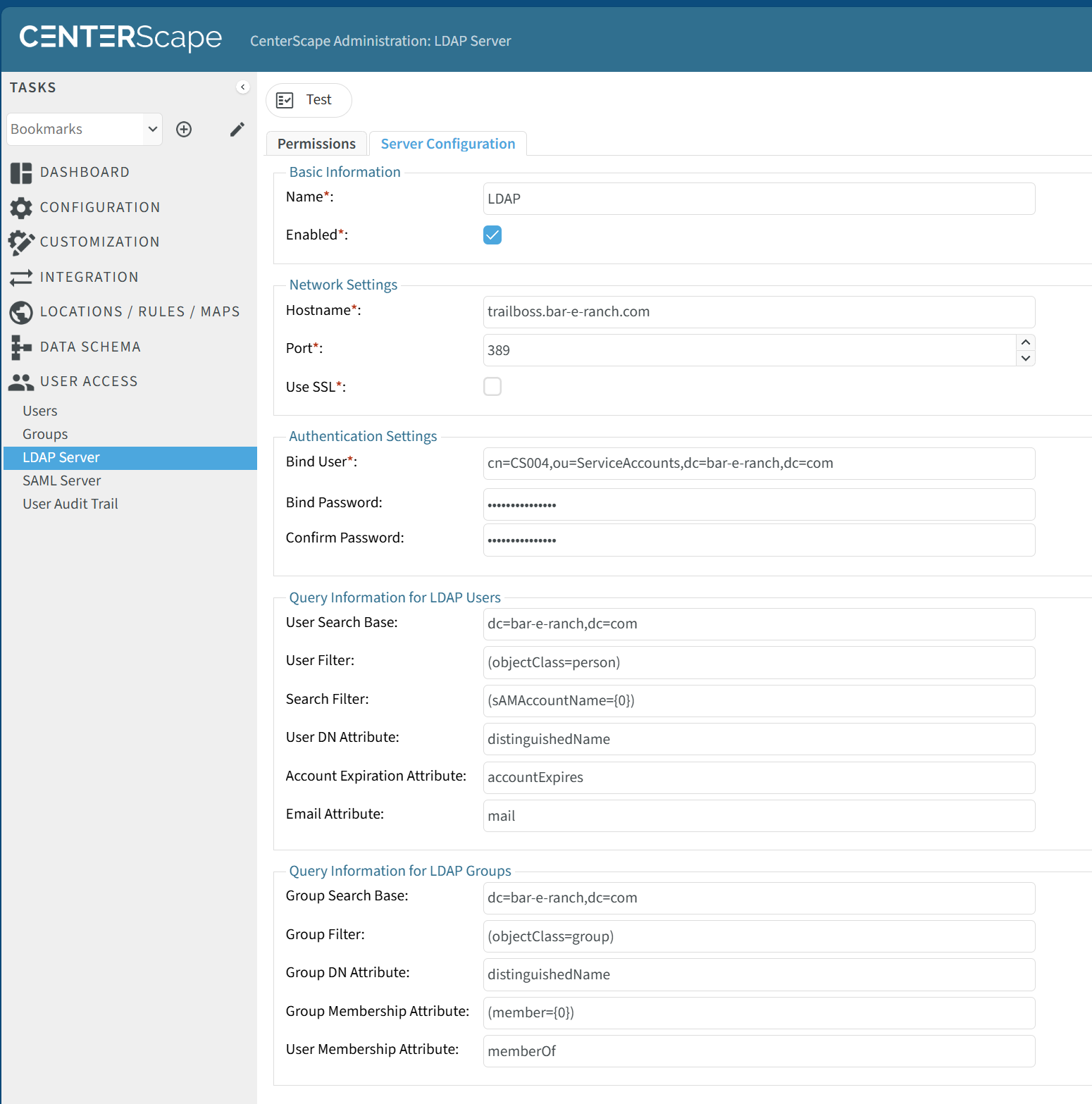
Below is an example of a configured Active Directory Server.
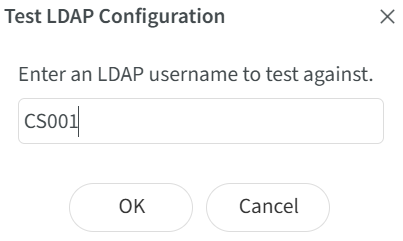
Clicking on the test button will bring up a dialog. In the dialog a user account will be required. The password for the account is not needed for the test as the test simply searches the LDAP server for an account with the Search Filter set to the account name.
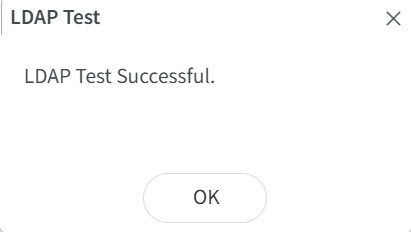
If the test is successful the following will be displayed.
Granting Permission to LDAP Users
LDAP users can be granted access and privileges to CenterScape in one of two ways.
- Users can be granted access explicitly on a user by user basis
- Users can be granted access by granting user groups that they are a member of to CenterScape.
The permissions tab in the Admin Console->User Access->LDAP Server is where users and user groups are granted access to CenterScape.
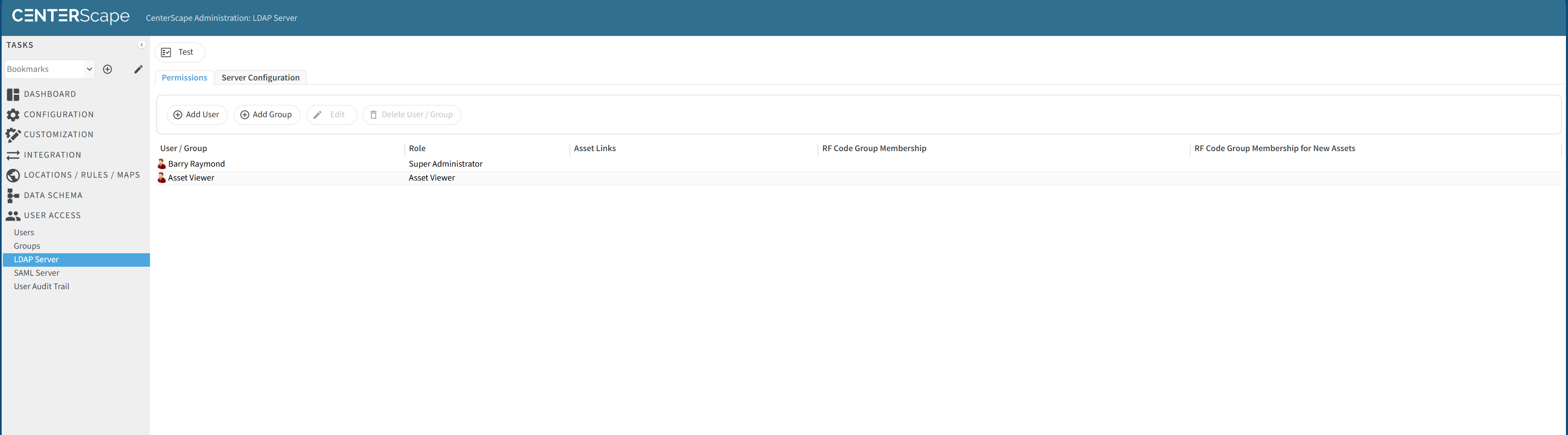
To grant a user access to CenterScape click on Add User button.
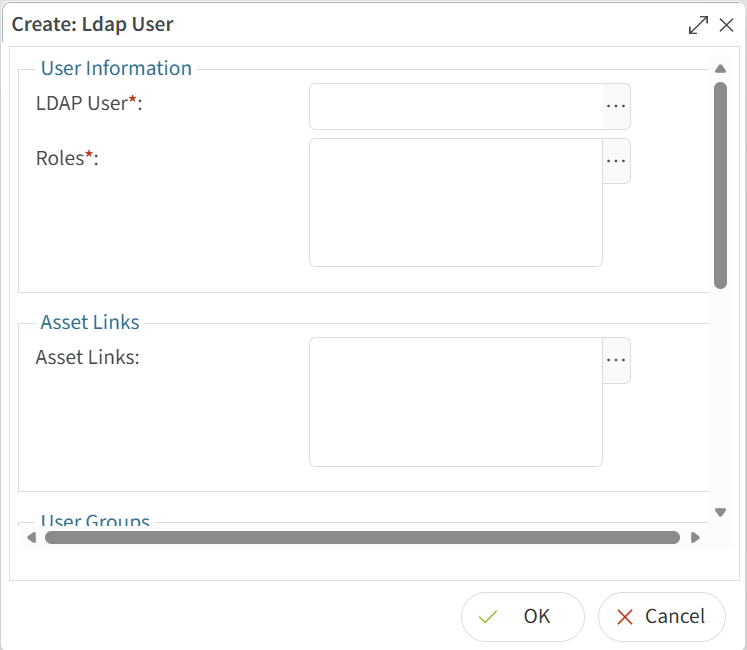
Click on the three dot button to select an LDAP User.
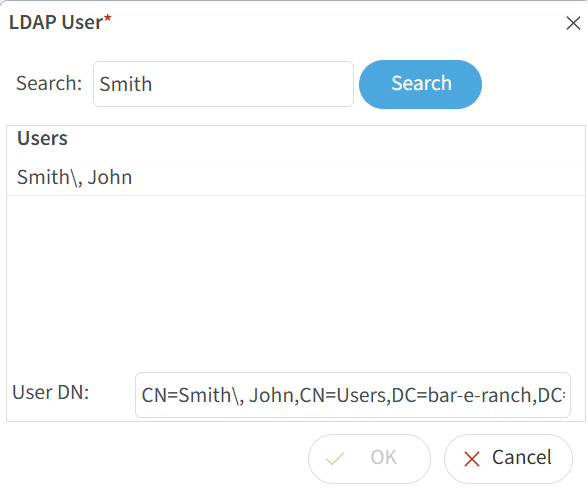
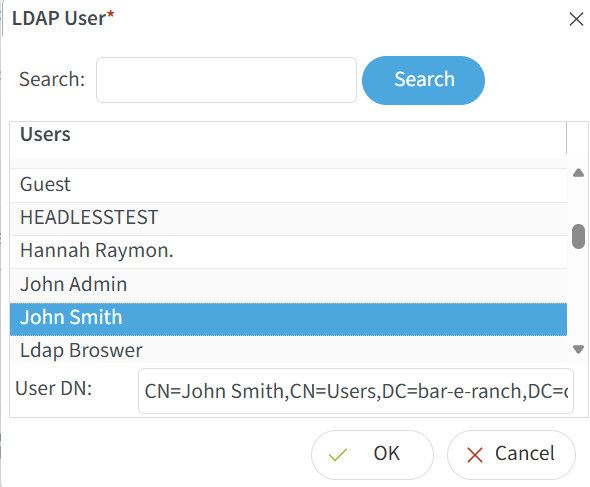
On large directories it is normal for too many users to be displayed in the dialog. The search function will allow the filtering of users. In the below example John Smith is selected by filtering for Smith. Some Active Directory setups have last name first, then first name. A "" will be displayed as an escape character in this case in front of the comma.
In the next graphic a user called John Smith arranged in the normal fashion is selected and then the ok button is pressed.
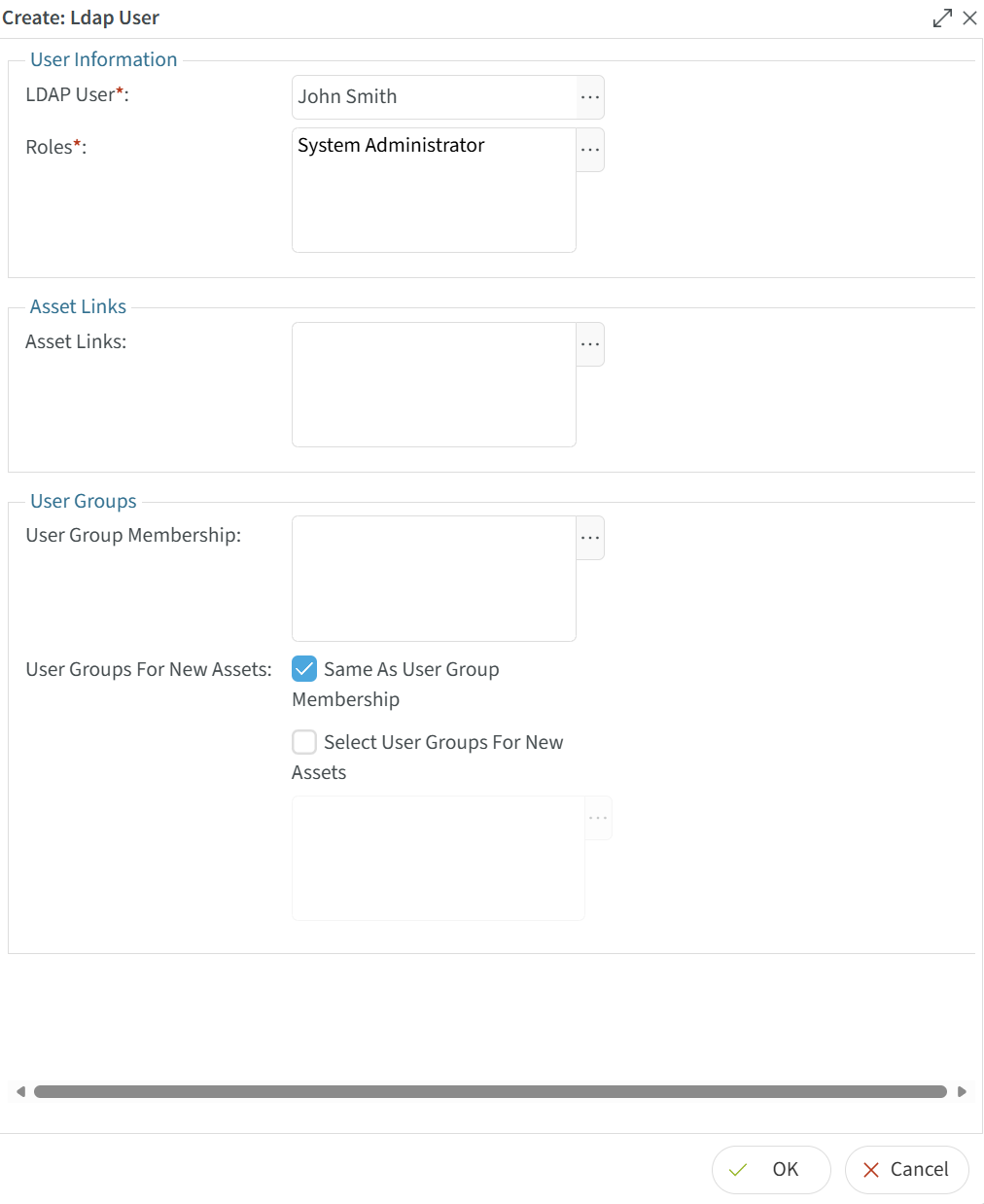
Next roles are chosen that apply to the user. In most cases only one role per user should be chosen as roles are additive in nature. The available role matrix is decribed in the User Roles section of this documentation.
Asset Links can be selected next if desired. Asset links that are assigned to the "Everyone Group" are available to all users even if they are not chosen here.
User Group Membership can be used if asset links are assigned to CenterScape groups. Otherwise, there is no need to assign a user to a CenterScape Group.
User Groups for New Assets is deprecated and should be set to Same as User Group Membership.
Groups are configured the same way, except that the search reveals only user groups. Permissions for user groups are done by clicking the add group button.