Managing Users
Viewing and Managing User Accounts
User Access is managed in the Admin Console under "User Access". In the Users selection a list of users will appear in the middle frame. These users can be either local users or remote users that have logged in previously. One special local account called the admin account cannot be deleted or disabled and can be recovered with an account recovery procedure if the password is lost. The 'admin' account is also the only account that ships with CenterScape and will have a password of 'admin' on a new install of CenterScape. Local accounts are CenterScape accounts that are stored in the database. Users authenticate with a user name and password that is compared with the username and encrypted password stored in the database.
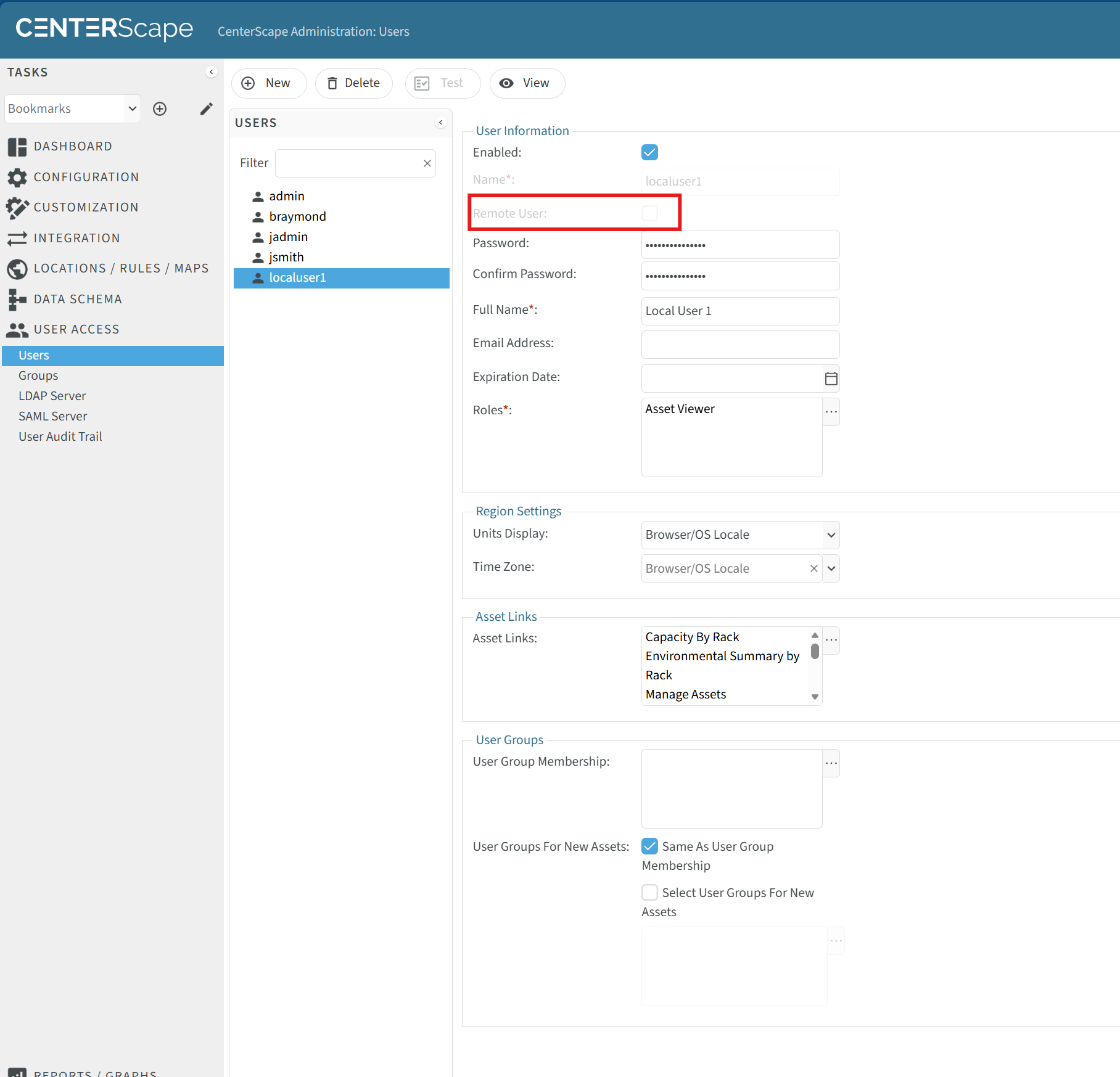
The user accounts listed in the users frame can be either local or remote. A remote user is a SAML or LDAP user. In the above example localuser1 is a local user as the Remote User check box is empty.
User Fields
The following is a description of user fields and how they are applied to a user set.
| Attribute | Description | Local User | Remote User | Notes |
|---|---|---|---|---|
| Enabled | Determines whether a local or remote user can login with the account. When checked the user can login. When uncheck the account is locked. | Applies to all local users except the admin account which cannot be disabled. | Applies to Remote users. However if account is deleted from list the account will be recreated with enabled when user tries to log in again. | Remote accounts are created by the system at first login based on LDAP and SAML configurations. The local account 'admin' will not allow this field to be unchecked. |
| Name | This is the account login that is supplied to CenterScape. The account login is immutable and must be unique. | For local users this field is set when creating the account | For remote users this field is autogenerated based on the LDAP or SAML configuration that allowed the login. | More details on the Name field when the account is a remote account can be found in the SAML and LDAP sections |
| Remote User | This field indicates whether an account is local or remote. It cannot be modified and is system generated | Field will be unchecked for local users. | Field will be checked for SAML and LDAP users | |
| Password/Confirm Password | For local accounts this is where the initial password for the user is defined. | Required for local accounts | This field is not used for remote accounts as passwords are managed through SAML or LDAP systems | Local users can change their passwords after logging in. |
| Full Name | This is the full name of the account and is required. | For local users this field is entered when creating the account and can be changed | For SAML and LDAP users this field is autogenerated | |
| Email Address | Email address field that can be used to describe a user. | For local users the field is manual entry and optional | For remote users this field can be autogenerated | |
| Expiration Date | An optional experiation date can be added that disables the account on the day of the expiration. | Applies to local users only | Expiration dates for users can be applied in SAML and LDAP systems and are not avaiable in CenterScape. | |
| Roles | The list of roles that a user has been assigned | Roles are assigned to local users in the Users panel. | Roles for LDAP and SAML users are assigned in the LDAP and SAML configuration areas and are displayed but cannot be changed in the Users menu. | |
| Units Display | Units can be displayed in Metric or English units. By default all units are stored and evaluated as metric, but are presented as either Metric or English in the user interface. The default setting is to allow the web browser locale to determine whether to use English or Metric, but this setting can be overriden by selecting English or Metric. | Local users will default to Browser/OS Locale but can change their Units Display after login. | Remote Users will default to Browser/OS Locale but can change their Units Display after login. | If a remote account is deleted without modifying the LDAP or SAML settings to prevent authorization, the Units Display will reset to Broswer/OS Locale |
| Time Zone | The time zone of a user determines how time is presented in the web interface. The default setting is Browser/OS Local, which will use the time zone that the web broswer indicates. The default can be overridden if desired. | Local users can have their time zone set when the account is created and can modify it after logging in by adjusting their profile. | Remote users can have their time zone reset after the account is created at first login. They can also modify it after logging in by adjusting their profile. | Time Zone settings determine which time zone timestamps are displayed for interactive UI graphs, reports, dashboards, and lists. Time data is saved internally in milliseconds since Jan 1st 1970 and are based on the system clock of the server the CenterScape application runs on. |
| Asset Links | An asset link is a set of filters in combination with a set of views that determine the choices users have in the Manage Assets UI. Asset links get assigned directly to the user or to the user by membership in a CenterScape User Group. | Local users can have asset links assigned by CenterScape group membership or on a per user basis. | Remote users can have asset links assigned by CenterScape group membership or on a per user basis. | The set of asset links a user gets is detemined by all the asset links set for all the CenterScape groups the user is a member of plus the asset links granted to the user explicitly in the Users UI. By default the Everyone Group, which every local and remote user is a member of, includes the default set of asset links. When creating a new asset link, users will not have access to it unless it is added to the Everyone Group, the user, or another CenterScape group that users are a member of. |
| User Group Membership | This is a list of CenterScape groups that a user is a member of. This list does not include the Everone Group, which all users are a member of. | Local users must be assigned additional CenterScape groups in the Users menu, if additional CenterScape Groups are desired. | Remote User group memebership is displayed in the User menu, but is determined in the SAML and LDAP configuration. Group membership for remote users can not be modified in the User menu. | CenterScape Groups are optional and not required. They limit only access to asset links. If limiting access to asset links is not desired asset links should be added to the Everyone Group so that all users may have access. |
| User Groups for New Assets | This field is not applied in CenterScape and has no effect. |